VPN — Mac
macOS includes a built-in L2TP VPN client. No third-party app required.
Prerequisites
You need a VPN user account and credentials in Dashlane before starting. See the VPN overview for details.
Setup
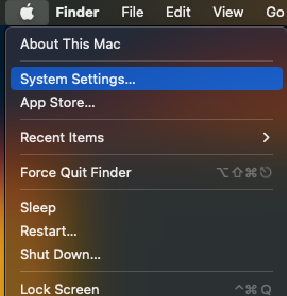
1. Click the Apple menu () in the top-left corner → System Settings
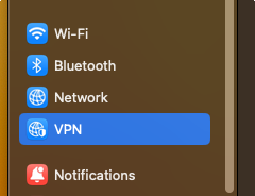
2. Select VPN in the left sidebar.
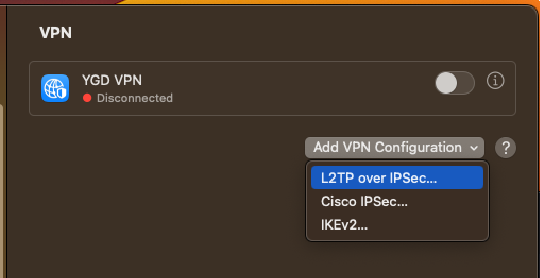
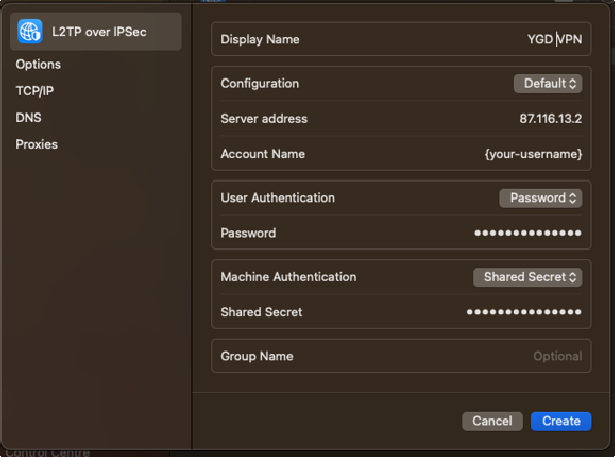
3. Click Add VPN Configuration → select L2TP over IPSec.
4. Fill in the connection details:
| Field | Value |
|---|---|
| Display Name | Any name you like |
| Server address | 87.116.13.2 |
| Account name | Your VPN username (Dashlane → VPN credentials) |
| User Authentication | Password |
| Password | Your VPN password (Dashlane → VPN credentials) |
| Machine Authentication | Shared Secret |
| Shared Secret | (Dashlane → VPN - Shared Secret) |
Click Create to save.
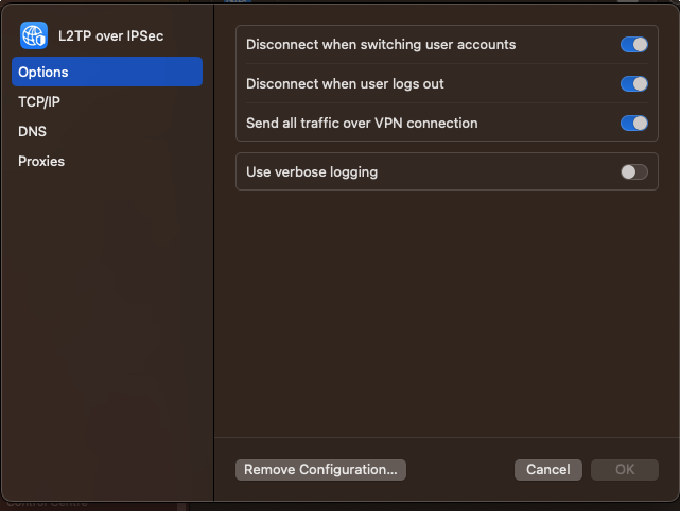
5. Click Options and enable Send all traffic over VPN connection.
Required
Without this enabled, web servers will deny access even when you're connected to the VPN.
Connecting
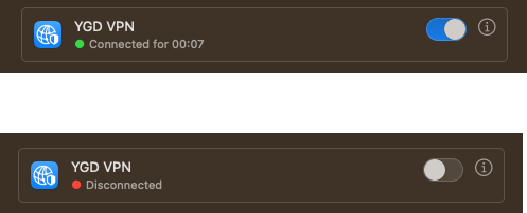
Toggle the VPN configuration on or off from the VPN settings panel.